If you are new to networking, you have probably seen terms like DNS, DNS records, A record, CNAME, and MX record.
At first, these terms can look confusing. But the basic idea behind DNS is actually very simple.
Whenever you type a website name such as:
www.example.comyour computer needs to find the IP address of the server where that website is hosted.
This is where DNS (Domain Name System) comes into the picture.
In this blog, we will understand:
- What is DNS?
- Why do we need DNS?
- How does DNS work?
- What are DNS records?
- Common types of DNS records
- How DNS resolution happens step by step
- A practical example
- DNS concepts you should know as a beginner
1. What is DNS?
DNS stands for Domain Name System.
In simple words:
DNS converts human-friendly domain names into IP addresses that computers can understand.
For example, humans prefer to remember:
google.comBut computers communicate with servers using IP addresses such as:
142.250.x.x- You don't need to remember the IP address every time you want to visit Google.
- Instead, DNS helps your computer find the IP address associated with the domain name.
- You can think of DNS as the phonebook of the internet.
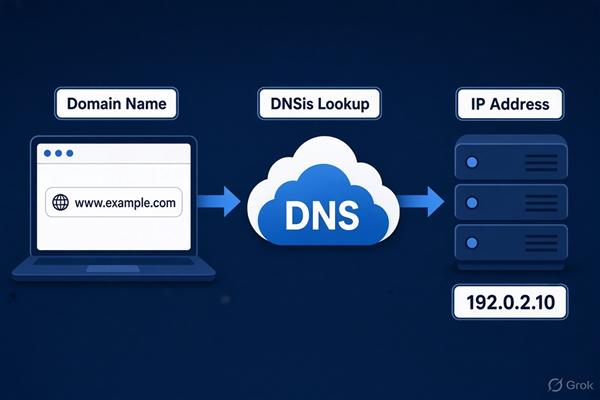
Simple analogy
Imagine you have a contact saved in your phone:
Rahul → +91-XXXXXXXXXXYou don't need to remember Rahul's phone number. You simply search for Rahul, and your phone finds the number.
DNS works in a similar way:
google.com → IP addressSo:
Domain Name → IP Addressis the most basic concept you need to understand.
2. Why Do We Need DNS?
Without DNS, we would have to remember IP addresses for every website.
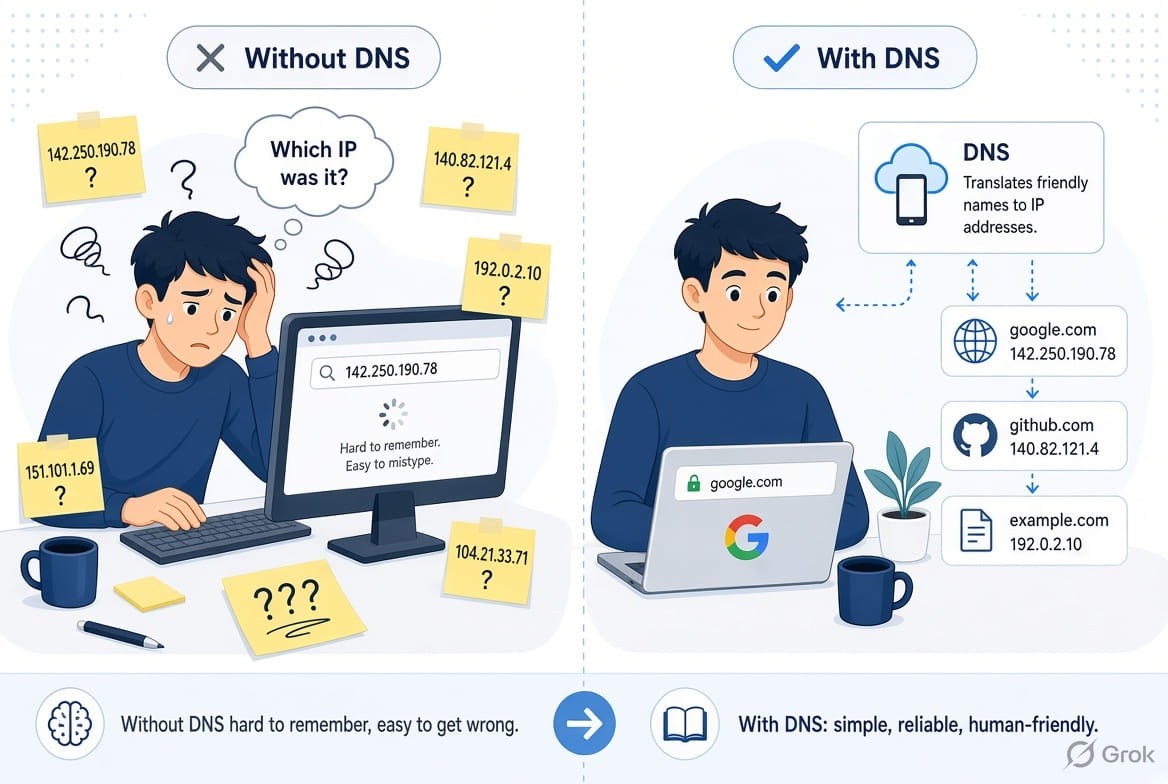
Imagine trying to remember:
142.250.x.x
172.217.x.x
104.18.x.x
just to visit different websites.
That would be difficult.
Instead, we use easy-to-remember names:
google.com
youtube.com
github.com
amazon.com
DNS provides a layer between humans and computers.
Human
  ↓
google.com
  ↓
DNS
  ↓
IP Address
  ↓
Web Server
This makes the internet much easier to use.
3. What is a Domain Name?
Before understanding DNS records, let's understand a domain name.
Consider:
www.example.comThis domain has different parts.
www     . example . com
 │           │       │
 │           │       └── Top-Level Domain (TLD)
 │           └────────── Domain name
 └────────────────────── Subdomain
com
.com is a
Top-Level Domain (TLD).
Other examples include:
.org
.net
.edu
.in
.uk
example
This is the domain name registered under .com.
So:
example.comis the domain.
www
www is a hostname/subdomain commonly used for websites.
You can also have:
api.example.com
mail.example.com
blog.example.com
dev.example.com
Each can point to different services or servers.
4. What is a DNS Record?
A DNS record is a piece of information stored in DNS that tells DNS servers something about a domain.
For example:
example.com → 192.0.2.10This could be represented by an A record.
DNS can store many different types of information.
For example:
A       → IPv4 address
AAAA    → IPv6 address
CNAME   → Another hostname
MX      → Mail server
TXT     → Text information
NS      → Authoritative name servers
Think of DNS records as entries in the internet's phonebook.
5. How Does DNS Work?
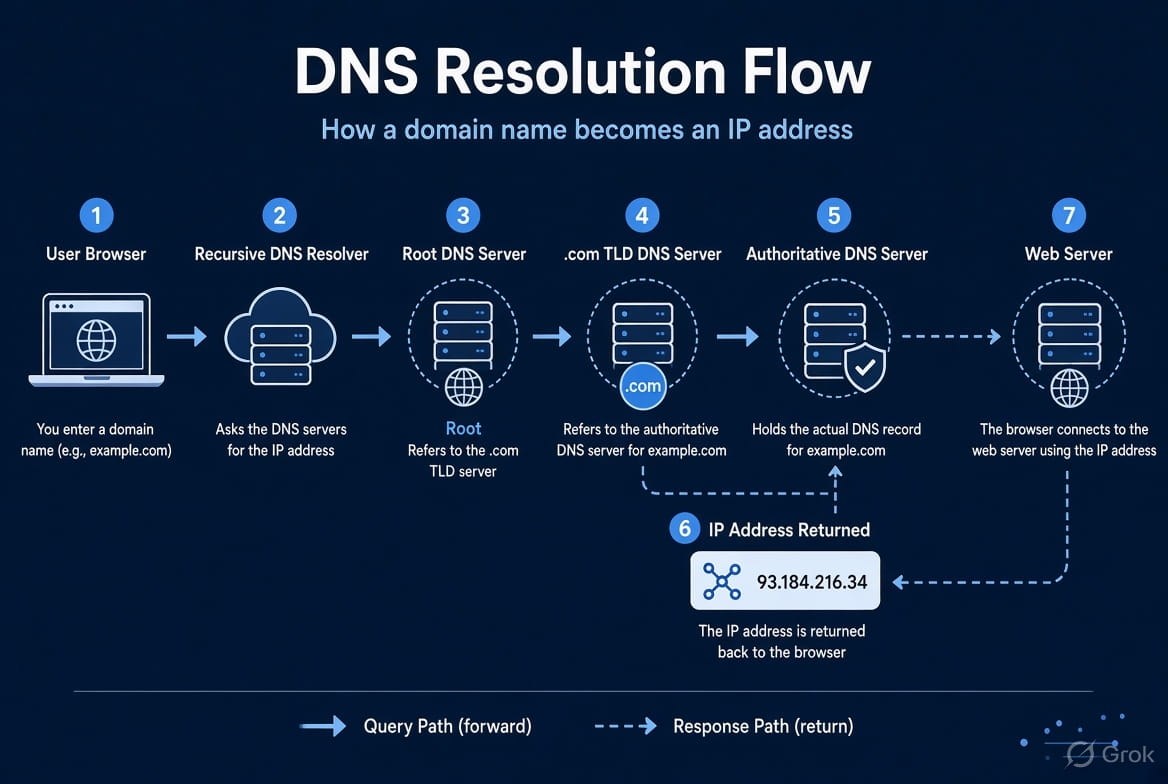
Now let's understand what happens when you type:
www.example.cominto your browser.
At a high level:
You
 ↓
Browser
 ↓
Operating System
 ↓
DNS Resolver
 ↓
Root DNS Server
 ↓
TLD DNS Server
 ↓
Authoritative DNS Server
 ↓
IP Address
 ↓
Web Server
Let's understand each step.
6. Step 1: You Enter a Website Address
You open your browser and type:
www.example.comYour computer needs to know:
"What is the IP address of www.example.com?"
So it starts a DNS lookup.
7. Step 2: Browser and OS Check Their Cache
Before asking external DNS servers, your device may already know the answer.
Your browser or operating system can have a DNS cache.
For example:
www.example.com → 192.0.2.10If the information is still valid, your computer can use it immediately.
This makes DNS faster and reduces unnecessary DNS queries.
8. Step 3: DNS Resolver
If your computer doesn't have the answer cached, it sends a DNS query to a DNS resolver.
The resolver is usually provided by:
- Your Internet Service Provider (ISP)
- Your organization
- A public DNS service
Examples of public DNS resolver services include:
Google Public DNS
Cloudflare DNS
Quad9
The resolver's job is to find the answer for you.
9. Step 4: Root DNS Server
If the resolver doesn't already know the answer, it can ask a root DNS server.
The root server doesn't normally tell the resolver:
www.example.com = 192.0.2.10Instead, it says approximately:
"I don't know the exact address, but I know which DNS servers handle
.com."
The resolver is then directed toward the .com TLD DNS servers.
10. Step 5: TLD DNS Server
The TLD stands for Top-Level Domain.
For:
www.example.comthe TLD is:
.comThe TLD DNS server knows which authoritative DNS servers are responsible for:
example.comIt sends the resolver in that direction.
11. Step 6: Authoritative DNS Server
Now the resolver contacts the authoritative DNS server for:
example.comThis server contains the actual DNS records for the domain.
For example:
www.example.com → 192.0.2.10The authoritative server returns the answer.
12. Step 7: Browser Connects to the Server
The resolver gives the IP address back to your computer.
For example:
www.example.com
        ↓
192.0.2.10
Now your browser knows where to connect.
The browser can then establish a network connection to the server and request the website.
So the simplified process looks like this:
You type:
www.example.com
       ↓
DNS Lookup
       ↓
192.0.2.10
       ↓
Connect to server
       ↓
Website loads
13. Important DNS Record Types
Now let's look at the most important DNS records.
You don't need to memorize everything when you're starting.
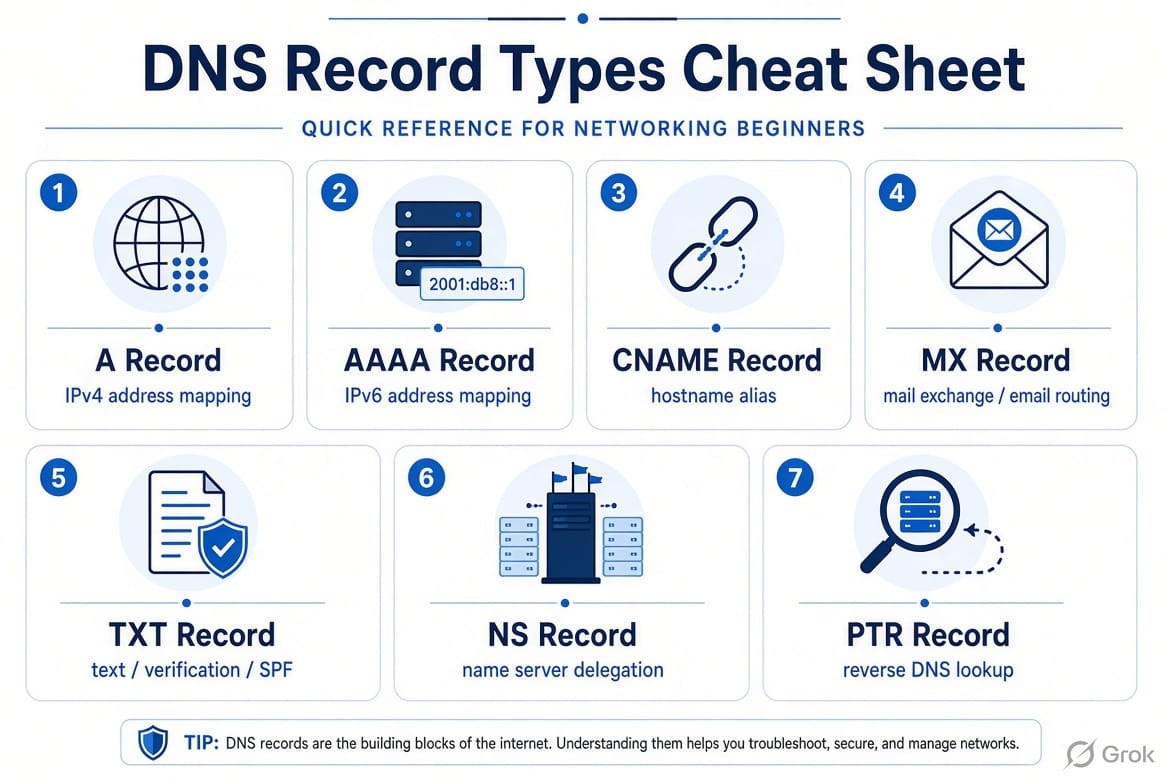
Focus on these first:
- Web Routing Records
- A : Connects a domain to an IPv4 address (e.g.,
192.0.2.1). - AAAA : Connects a domain to an IPv6 address (e.g.,
2001:db8::1). - CNAME : Points a subdomain to another domain name as an
alias (e.g.,
wwwtoroot).
- A : Connects a domain to an IPv4 address (e.g.,
- Email & Security Records
- MX : Directs incoming email traffic to specific mail servers using priority numbers.
- TXT : Holds text notes used to prove domain ownership and stop spam via SPF/DKIM/DMARC.
- PTR : Maps an IP back to a domain (Reverse DNS) to verify email sender identities.
- Infrastructure Records
- NS : Shows which nameservers hold the authoritative, official DNS map for your domain.
14. A Record
The A record maps a hostname to an IPv4 address.
Example:
example.com → 192.0.2.10A simplified DNS record could look like:
Name: example.com
Type: A
Value: 192.0.2.10
The important thing to remember:
A record = IPv4 address
Example:
api.example.com → 203.0.113.20Here:
api.example.com
       ↓
A record
       ↓
203.0.113.20
15. AAAA Record
An AAAA record maps a hostname to an IPv6 address.
For example:
example.com → 2001:db8::10So:
A     → IPv4
AAAA  → IPv6
This is one of the easiest DNS concepts to remember.
16. CNAME Record
CNAME stands for Canonical Name.
It allows one hostname to point to another hostname.
For example:
www.example.com → example.comYou could have:
www.example.com
        ↓
      CNAME
        ↓
example.com
Then example.com might have an A record:
example.com → 192.0.2.10So the lookup can conceptually become:
www.example.com
       ↓
CNAME
       ↓
example.com
       ↓
A record
       ↓
192.0.2.10
Why is CNAME useful?
Suppose a service provider gives you:
service.provider.com
and asks you to make:
app.example.compoint to it.
A CNAME can often be used:
app.example.com → service.provider.comThis is very common with hosted services.
17. MX Record
MX stands for Mail Exchange.
MX records tell the internet which mail servers handle email for a domain.
For example:
example.com → mail.example.comConceptually:
MX
example.com
     ↓
mail.example.com
When someone sends an email to:
user@example.comthe sending mail server checks the MX records for:
example.comto determine where to deliver the email.
MX records also have a priority value.
For example:
10 mail1.example.com
20 mail2.example.com
A lower number generally means higher preference.
18. TXT Record
TXT records store text associated with a domain.
You might wonder:
"Why would DNS need text?"
TXT records are commonly used for verification and email-related security mechanisms.
For example, services may ask you to add a TXT record to prove that you control a domain.
You may see something like:
example.com
TXT
"some-verification-value"
TXT records are also used by technologies such as:
- SPF
- Domain ownership verification
- DKIM-related DNS configuration
- DMARC-related configuration
The exact syntax depends on the technology.
For a beginner, remember:
TXT = text information stored in DNS, often used for verification and email-related configuration.
19. NS Record
NS stands for Name Server.
NS records tell us which DNS servers are authoritative for a domain.
For example:
example.com

NS → ns1.example-dns.com
NS → ns2.example-dns.com
You can think of NS records as answering:
"Which DNS servers are responsible for this domain?"
This is important because those authoritative servers contain the domain's DNS records.
20. PTR Record
PTR records are mainly used for reverse DNS lookups.
Normally, DNS works like this:
Domain → IP addressFor example:
example.com → 192.0.2.10A reverse lookup goes the other way:
IP address → Domain nameFor example:
192.0.2.10 → example.comThis is done using a PTR record.
A common use case is email infrastructure, where reverse DNS information can be relevant to server reputation and configuration.
21. Quick DNS Record Cheat Sheet
| Record | Purpose |
|---|---|
| A | Domain → IPv4 address |
| AAAA | Domain → IPv6 address |
| CNAME | Hostname → another hostname |
| MX | Specifies mail servers |
| TXT | Stores text, verification, and other configuration |
| NS | Specifies authoritative name servers |
| PTR | IP address → hostname |
If you're a beginner, start by remembering:
A     = IPv4
AAAA  = IPv6
CNAME = Another hostname
MX    = Email
TXT   = Text/verification
NS    = Name servers
PTR   = Reverse DNS
22. What is TTL?
Another important DNS concept is TTL.
TTL means:
Time To Live
It tells DNS resolvers how long they can cache a DNS response before asking again.
For example:
example.com
A
192.0.2.10
TTL: 3600
A TTL of:
3600 secondsmeans the record can generally be cached for:
1 hourWhy is this useful?
Suppose you change:
example.com → Server Ato:
example.com → Server BDNS caches may still contain the old answer until their TTL expires.
This is one reason DNS changes are not always visible everywhere immediately.
23. What is DNS Propagation?
You will often hear people say:
"DNS propagation can take some time."
This generally refers to the fact that DNS information can be cached by different resolvers for different lengths of time.
Imagine you change:
example.com
A → 192.0.2.10
to:
example.com
A → 203.0.113.10
Some DNS resolvers may still have the old answer cached.
Others may have already obtained the new answer.
Eventually, as cached records expire and are refreshed, more resolvers will obtain the new information.
So DNS isn't necessarily a single database that instantly changes everywhere.
24. Authoritative DNS vs Recursive DNS
This distinction is important.
Recursive DNS Resolver
A recursive resolver finds DNS answers on behalf of clients.
For example:
Your computer
      ↓
Recursive Resolver
      ↓
Finds the answer
It may contact other DNS servers to obtain the answer.
Authoritative DNS Server
An authoritative DNS server is responsible for the actual DNS data for a domain.
For example:
example.com
      ↓
Authoritative DNS
      ↓
A record
MX record
TXT record
etc.
A simple way to remember:
Recursive resolver = finds the answer
Authoritative server = provides the authoritative DNS data
25. A Complete DNS Example
Let's imagine you own:
mywebsite.comYou have a web server with:
203.0.113.50You create:
mywebsite.com
A
203.0.113.50
You also want:
www.mywebsite.comto use the same hostname.
You might configure:
www.mywebsite.com
CNAME
mywebsite.com
Your DNS configuration could conceptually look like:
mywebsite.com        A       203.0.113.50

www.mywebsite.com    CNAME   mywebsite.com

mywebsite.com        MX      mail.mywebsite.com

mywebsite.com        TXT     "verification-data"

mywebsite.com        NS      ns1.dns-provider.com
Now when someone enters:
www.mywebsite.comthe DNS process can follow:
www.mywebsite.com
       ↓
CNAME
       ↓
mywebsite.com
       ↓
A record
       ↓
203.0.113.50
The browser can then connect to the server at that IP address.
26. DNS Is Not the Same as HTTP
Beginners sometimes confuse DNS with HTTP/HTTPS.
They are different things.
DNS
DNS answers:
"What IP address belongs to this hostname?"
For example:
example.com
      ↓
203.0.113.10
HTTP/HTTPS
HTTP/HTTPS is used to communicate with the web server.
Conceptually:
DNS
 ↓
Find IP address

HTTPS
 ↓
Communicate with web server
So when you visit a website:
www.example.com
       ↓
DNS lookup
       ↓
IP address
       ↓
HTTPS connection
       ↓
Website
DNS helps you find the server.
HTTPS helps you communicate securely with the website.
27. What Happens When DNS Fails?
If DNS isn't working correctly, you may see errors such as:
DNS_PROBE_FINISHED_NXDOMAINor:
Server DNS address could not be found
This can happen for several reasons.
For example:
- DNS record doesn't exist
- Domain doesn't exist
- Incorrect DNS configuration
- DNS server is unavailable
- Cached information is outdated
- Nameserver configuration is incorrect
For example, suppose you want:
app.example.comto point to:
203.0.113.20but accidentally configure:
203.0.113.200DNS may successfully return an IP address, but you'll be connecting to the wrong server.
That's why correct DNS configuration is important.
28. How Can You Check DNS Records?
As you start learning networking, you should become comfortable with basic DNS commands.
Using nslookup
On many systems:
nslookup example.comYou can also query a specific record type:
nslookup -type=MX example.comFor TXT:
nslookup -type=TXT example.com29. Using dig
On Linux and macOS, dig is a very useful DNS troubleshooting tool.
For an A record:
dig example.comFor MX:
dig example.com MXFor TXT:
dig example.com TXTFor NS:
dig example.com NSdig is particularly useful when you're learning how DNS works because it exposes more details about the DNS response.
30. DNS in One Picture
Here is the entire concept in a simplified diagram:
                YOU
                 |
                 |  www.example.com
                 ↓
          +----------------+
          | DNS Resolver   |
          +----------------+
                 |
                 ↓
          +----------------+
          | Root DNS       |
          +----------------+
                 |
                 ↓
          +----------------+
          | .com TLD DNS   |
          +----------------+
                 |
                 ↓
       +----------------------+
       | Authoritative DNS    |
       | for example.com      |
       +----------------------+
                 |
                 | A Record
                 ↓
            203.0.113.10
                 |
                 ↓
          +--------------+
          | Web Server   |
          +--------------+
                 |
                 ↓
             Website
The actual DNS process includes caching and other details, but this diagram is a good beginner-level mental model.
31. The Most Important Things to Remember
If you're completely new to networking, don't try to memorize every DNS detail immediately.
Start with these concepts.
1. DNS means Domain Name System
DNS = Domain Name System2. DNS translates names into IP addresses
example.com
     ↓
IP address
3. DNS uses records
Records contain information about a domain.
4. Learn these records first
A       → IPv4
AAAA    → IPv6
CNAME   → Another hostname
MX      → Email
TXT     → Text/verification
NS      → Authoritative name servers
PTR     → Reverse DNS
5. DNS uses caching
Caching improves performance but means changes may not be visible immediately everywhere.
6. Recursive and authoritative DNS are different
Recursive resolver
    ↓
Finds the answer

Authoritative server
    ↓
Holds the authoritative DNS records
32. Final Mental Model
Think about DNS like this:
- Imagine the internet is a huge city.
- Servers are houses.
- IP addresses are street addresses.
- Domain names are easy names people use to identify those houses.
- DNS is the directory that helps you find the street address.
So when you type:
www.example.comDNS helps answer:
"Where is www.example.com?"The answer might be:
203.0.113.10Your computer can then connect to that server.
The overall journey is:
Domain Name
     ↓
DNS Lookup
     ↓
DNS Records
     ↓
IP Address
     ↓
Server
     ↓
Website / Application
Once you understand this flow, concepts like A records, CNAME, MX, TXT, nameservers, DNS resolvers, TTL, caching, and DNS troubleshooting become much easier to understand.
These concepts form a strong foundation for learning networking, Linux, cloud computing, DevOps, cybersecurity, and system administration.
