Apache Kafka can look complicated when you first hear terms like producer, consumer, broker, topic, partition, and offset. But the basic idea is actually quite simple:
One application sends messages to Kafka, and another application reads those messages from Kafka.
What Is Kafka?
Apache Kafka is a distributed event-streaming platform. In simple terms, Kafka helps different applications communicate with each other by sending and receiving messages.
Imagine you have an e-commerce application.
When a customer places an order, several things may need to happen:
- Save the order.
- Send an email.
- Update inventory.
- Generate an invoice.
- Notify another system.
Instead of making the order API call every system directly, we can send an OrderCreated event to Kafka.
Order API
    |
    | OrderCreated
    v
  Kafka
    |
    +----> Email Service
    |
    +----> Inventory Service
    |
    +----> Invoice Service
This makes the system more loosely coupled and easier to scale.
Important Kafka Concepts
Before writing code, let's understand a few basic Kafka terms.
1. Producer
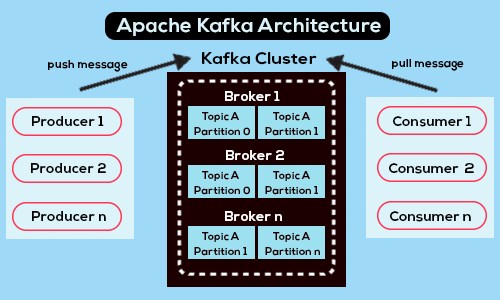
A producer is an application that sends messages to Kafka.
For example:
Order Service ---> KafkaThe Order Service is the producer.
2. Consumer
A consumer reads messages from Kafka.
Kafka ---> Email ServiceThe Email Service is the consumer.
3. Topic
A topic is like a named channel where messages are stored.
For example:
orders
payments
notifications
An order event could be sent to the orders topic.
4. Broker
- A Kafka broker is a Kafka server that stores and serves messages.
- A Kafka cluster can contain multiple brokers.
- For a beginner's local setup, you can start with a single broker.
5. Partition
A topic can be divided into multiple partitions.
For example:
orders
 ├── Partition 0
 ├── Partition 1
 └── Partition 2
Partitions allow Kafka to process large amounts of data in parallel.
You don't need to understand every detail of partitions to build your first Kafka application. Just remember:
A topic can contain multiple partitions, and Kafka uses partitions to scale message processing.
6. Offset
An offset is the position of a message inside a partition.
For example:
Offset 0 -> Order 101
Offset 1 -> Order 102
Offset 2 -> Order 103
Kafka uses offsets to keep track of which messages a consumer has processed.
7. Consumer Group
A consumer group is a group of consumers working together.
For example:
orders topic
      |
      v
 Consumer Group
   |       |
   v       v
Consumer  Consumer
   1         2
Kafka can distribute partitions among consumers in the same group.
Setting Up Kafka
There are several ways to run Kafka locally. You can use Docker, a local Kafka installation, or a managed Kafka service.
For learning purposes, Docker is a convenient option.
A simple Docker Compose setup can look like this:
services:
  kafka:
    image: apache/kafka:latest
    ports:
      - "9092:9092"
Start Kafka with:
docker compose up -dThe exact Kafka Docker configuration can vary depending on the Kafka version and environment, so for production or a more complete local setup, follow the Kafka documentation for the version you are using.
For our .NET application, we will assume Kafka is available at:
localhost:9092Creating the .NET Core Project
Let's create a simple ASP.NET Core Web API.
dotnet new webapi -n KafkaDemo
cd KafkaDemo
Now install the popular .NET Kafka client:
dotnet add package Confluent.KafkaThe Confluent.Kafka package provides .NET APIs for producing and consuming Kafka messages.
Creating Our First Kafka Producer
Let's say our application needs to publish an order event.
Create a model:
// Represents an order in our application.
// This class will be used to create the data that we want to send to Kafka.
public class Order
{
    // Unique ID of the order.
    public int Id { get; set; }

    // Name of the product included in the order.
    // string.Empty prevents the property from being null by default.
    public string ProductName { get; set; } = string.Empty;

    // Price/amount of the order.
    // decimal is commonly used for monetary values.
    public decimal Amount { get; set; }
}
Now let's create a Kafka producer.
// Import the Confluent.Kafka namespace.
// This package provides the classes required to work with Kafka in .NET.
using Confluent.Kafka;

public class KafkaProducer
{
    // Address of the Kafka broker.
    // localhost means Kafka is running on our local machine.
    // 9092 is the default Kafka port in our local setup.
    private readonly string _bootstrapServers = "localhost:9092";

    // This method sends a message to a Kafka topic.
    // 'async' allows us to send the message without blocking the application.
    public async Task SendMessageAsync(string message)
    {
        // Configure the Kafka producer.
        var config = new ProducerConfig
        {
            // Tell the producer where the Kafka broker is running.
            BootstrapServers = _bootstrapServers
        };

        // Create a Kafka producer using our configuration.
        // Null means we are not using a message key.
        // string means the message value will be a string.
        using var producer =
            new ProducerBuilder<Null, string>(config).Build();

        // Send the message to the "orders" Kafka topic.
        var result = await producer.ProduceAsync(
            "orders",
            new Message<Null, string>
            {
                // The actual message that we want to send to Kafka.
                Value = message
            });

        // Display information about where Kafka stored the message.
        // TopicPartitionOffset tells us the topic, partition, and offset.
        Console.WriteLine(
            $"Message sent to {result.TopicPartitionOffset}");
    }
}
Let's understand what is happening.
BootstrapServers
BootstrapServers = "localhost:9092"This tells the producer where Kafka is running.
Topic
"orders"This is the Kafka topic where we want to send our message.
Message
new Message<Null, string>
{
    Value = message
}
We are sending a string message.
ProduceAsync
await producer.ProduceAsync(...)This sends the message to Kafka.
Calling the Producer from an API
We can create a controller that sends an order event.
// Marks this class as an API controller.
// It enables features such as automatic model validation and API-specific behavior.
[ApiController]

// Defines the URL route for this controller.
// All endpoints in this controller will start with: /api/orders
[Route("api/orders")]
public class OrdersController : ControllerBase
{
    // Handles HTTP POST requests to: /api/orders
    // We use POST because we are creating a new order.
    [HttpPost]
    public async Task<IActionResult> CreateOrder(Order order)
    {
        // Create an instance of our Kafka producer.
        // The producer will be responsible for sending the order to Kafka.
        var producer = new KafkaProducer();

        // Convert the Order C# object into a JSON string.
        // Kafka will receive this JSON message.
        //
        // Example:
        // {
        //     "id": 101,
        //     "productName": "Laptop",
        //     "amount": 75000
        // }
        var message = JsonSerializer.Serialize(order);

        // Send the JSON message to the "orders" Kafka topic.
        await producer.SendMessageAsync(message);

        // Return a successful HTTP 200 response to the client.
        return Ok(new
        {
            // Message returned to the API caller.
            message = "Order event sent to Kafka"
        });
    }
}
Now we can call:
POST /api/orderswith:
{
  "id": 101,
  "productName": "Laptop",
  "amount": 75000
}
Our application converts the object into JSON and sends it to the orders Kafka topic.
Creating a Kafka Consumer
Now let's build the other side.
A consumer reads messages from Kafka.
// Import the Confluent.Kafka namespace.
// This provides the classes we need to create and use a Kafka consumer.
using Confluent.Kafka;

public class KafkaConsumer
{
    // Address of the Kafka broker.
    // localhost means Kafka is running on our local machine.
    // 9092 is the default Kafka port in our local setup.
    private readonly string _bootstrapServers = "localhost:9092";

    // Starts the Kafka consumer and listens for messages.
    public void Start()
    {
        // Configure the Kafka consumer.
        var config = new ConsumerConfig
        {
            // Tell the consumer where the Kafka broker is running.
            BootstrapServers = _bootstrapServers,

            // Name of the consumer group.
            // Kafka uses the group ID to keep track of consumed messages.
            GroupId = "order-consumer-group",

            // If the consumer doesn't have a previously stored offset,
            // start reading messages from the beginning of the topic.
            AutoOffsetReset = AutoOffsetReset.Earliest
        };

        // Create the Kafka consumer using the configuration above.
        //
        // Ignore means we are not using a message key.
        // string means the message value will be received as a string.
        using var consumer =
            new ConsumerBuilder<Ignore, string>(config).Build();

        // Subscribe to the "orders" topic.
        // The consumer will now listen for messages published to this topic.
        consumer.Subscribe("orders");

        // Continuously listen for new Kafka messages.
        // The loop keeps running until the application is stopped.
        while (true)
        {
            // Wait for a message from Kafka.
            // This call blocks until a message is available.
            var result = consumer.Consume();

            // Display the message received from Kafka.
            Console.WriteLine(
                $"Received: {result.Message.Value}");
        }
    }
}
There are a few important settings here.
GroupId
GroupId = "order-consumer-group"- This identifies the consumer group.
- Kafka uses consumer groups to coordinate which consumers receive which partitions.
AutoOffsetReset
AutoOffsetReset = AutoOffsetReset.EarliestThis tells Kafka:
If this consumer group doesn't have a previously stored offset, start reading from the earliest available message.
Subscribe
consumer.Subscribe("orders");The consumer subscribes to the orders topic.
Consume
var result = consumer.Consume();This waits for a Kafka message.
Once a message arrives, we can access it using:
result.Message.ValueRunning the Producer and Consumer
Now imagine we have two applications:
Order API
   |
   | Produce
   v
 Kafka
   |
   | Consume
   v
Order Consumer
When we call:
POST /api/ordersthe API sends:
{
  "id": 101,
  "productName": "Laptop",
  "amount": 75000
}
to Kafka.
The consumer receives the same message:
Received:
{"id":101,"productName":"Laptop","amount":75000}
That's our first Kafka-based communication flow.
A Better ASP.NET Core Approach: BackgroundService
The previous consumer example contains an infinite loop:
while (true)We normally don't want to start that directly inside an API controller.
ASP.NET Core provides BackgroundService, which is a much better place for a long-running Kafka consumer.
For example:
// BackgroundService is provided by ASP.NET Core.
// It allows us to run a long-running task in the background
// while our web application is running.
public class KafkaConsumerService : BackgroundService
{
    // IConfiguration allows us to read values from
    // appsettings.json, environment variables, etc.
    private readonly IConfiguration _configuration;

    // The configuration object is injected through Dependency Injection.
    public KafkaConsumerService(IConfiguration configuration)
    {
        _configuration = configuration;
    }

    // ExecuteAsync is called automatically by ASP.NET Core
    // when the BackgroundService starts.
    protected override Task ExecuteAsync(
        CancellationToken stoppingToken)
    {
        // Configure the Kafka consumer.
        var config = new ConsumerConfig
        {
            // Read the Kafka server address from appsettings.json.
            // Example: localhost:9092
            BootstrapServers =
                _configuration["Kafka:BootstrapServers"],

            // Read the consumer group name from configuration.
            // Kafka uses the group ID to manage message consumption.
            GroupId =
                _configuration["Kafka:GroupId"],

            // If this consumer group does not have a saved offset,
            // start reading messages from the beginning.
            AutoOffsetReset = AutoOffsetReset.Earliest
        };

        // Create the Kafka consumer using the configuration.
        //
        // Ignore means we are not using a Kafka message key.
        // string means the message value will be received as a string.
        using var consumer =
            new ConsumerBuilder<Ignore, string>(config).Build();

        // Subscribe to the "orders" Kafka topic.
        // The consumer will listen for messages published to this topic.
        consumer.Subscribe("orders");

        try
        {
            // Keep consuming messages while the application is running.
            //
            // stoppingToken.IsCancellationRequested becomes true
            // when ASP.NET Core asks the background service to stop.
            while (!stoppingToken.IsCancellationRequested)
            {
                // Wait for a new message from Kafka.
                //
                // Passing stoppingToken allows Consume() to stop
                // gracefully when the application is shutting down.
                var result = consumer.Consume(stoppingToken);

                // Display the message received from Kafka.
                Console.WriteLine(
                    $"Received order: {result.Message.Value}");
            }
        }
        catch (OperationCanceledException)
        {
            // This exception is expected when the application
            // is shutting down and the cancellation token is triggered.
            //
            // Close the consumer gracefully and commit any
            // required consumer state before shutting down.
            consumer.Close();
        }

        // The background service has finished.
        return Task.CompletedTask;
    }
}
Then register it in Program.cs:
builder.Services.AddHostedService<KafkaConsumerService>();Now ASP.NET Core starts the Kafka consumer as a background service.
Moving Kafka Configuration to appsettings.json
Instead of hardcoding:
localhost:9092we can put the configuration in appsettings.json.
{
  "Kafka": {
    "BootstrapServers": "localhost:9092",
    "GroupId": "order-consumer-group",
    "OrderTopic": "orders"
  }
}- Then access the values through
IConfiguration. - This is better because the Kafka server can be different in development, testing, and production.
For example:
Development -> localhost:9092
Testing     -> test-kafka:9092
Production  -> production-kafka:9092
Sending Objects Instead of Plain Strings
In real applications, we usually send structured events rather than random strings.
For example:
// Create an anonymous object that represents an order.
// This object contains the data that we want to send to Kafka.
var order = new
{
    // Unique ID of the order.
    Id = 101,

    // Name of the product that was ordered.
    ProductName = "Laptop",

    // Total amount of the order.
    // The value represents 75,000.
    Amount = 75000,

    // Store the date and time when the order was created.
    // UtcNow uses UTC time, which is recommended for
    // storing timestamps consistently across different servers.
    CreatedAt = DateTime.UtcNow
};

// Convert the C# order object into a JSON string.
// Kafka will receive this JSON string as the message.
//
// Example result:
// {
//   "Id": 101,
//   "ProductName": "Laptop",
//   "Amount": 75000,
//   "CreatedAt": "2026-08-18T10:30:00Z"
// }
var message = JsonSerializer.Serialize(order);
Then send the JSON to Kafka:
// Send the message to the Kafka topic named "orders".
await producer.ProduceAsync(
    "orders",

    // Create a Kafka message.
    new Message<Null, string>
    {
        // We are not using a message key, so the key is Null.
        // The actual JSON message is stored in the Value property.
        Value = message
    });
The consumer can deserialize it:
// Convert the JSON message received from Kafka
// back into our C# Order object.
//
// result.Message.Value contains the JSON string
// that was sent by the Kafka producer.
var order =
    JsonSerializer.Deserialize<Order>(
        result.Message.Value);
Now the consumer can work with a normal C# object.
Using a Kafka Key
Kafka messages can also have a key.
For example:
// Create a Kafka message with both a key and a value.
//
// The key helps Kafka determine which partition
// should receive the message.
var message = new Message<string, string>
{
    // Convert the order ID to a string and use it as the Kafka key.
    //
    // For example:
    // Order ID 101 -> Key "101"
    Key = order.Id.ToString(),

    // Convert the Order object into JSON.
    // This JSON becomes the actual message value sent to Kafka.
    //
    // For example:
    // {
    //   "Id": 101,
    //   "ProductName": "Laptop",
    //   "Amount": 75000
    // }
    Value = JsonSerializer.Serialize(order)
};
The key can be useful when you want messages with the same key to consistently go to the same partition.
For example:
Order 101 -> Partition 1
Order 102 -> Partition 2
Order 101 -> Partition 1
The exact partition assignment depends on Kafka's partitioning configuration.
Why Use Kafka in .NET Applications?
Kafka becomes particularly useful when your application has multiple services or needs to process a large number of events.
For example:
                 +--> Email Service
                 |
Order Service --> Kafka --> Inventory Service
                 |
                 +--> Payment Service
                 |
                 +--> Reporting Service
- Without Kafka, the Order Service might need to directly call all four services.
- With Kafka, the Order Service can publish an event once.
- Other services can independently consume that event.
- This provides several benefits.
- Loose Coupling
- The producer doesn't need to know all the consumers.
- Scalability
- Consumers can be scaled horizontally.
- Asynchronous Processing
- The producer doesn't have to wait for every downstream operation to finish.
- Durability
- Kafka stores messages according to its retention configuration, allowing consumers to process or replay events according to the application's design.
Kafka vs RabbitMQ: Beginner's View
If you have heard of RabbitMQ, you may wonder how Kafka is different.
A simplified way to think about it is:
| Kafka | RabbitMQ |
|---|---|
| Event streaming platform | Message broker |
| Designed for high-throughput event streams | Strong messaging/routing capabilities |
| Messages are stored according to retention policies | Messages are commonly consumed and removed/acknowledged |
| Consumers track offsets | Consumers commonly use acknowledgements |
| Excellent for event streaming and analytics | Excellent for traditional messaging and routing |
The choice depends on your application's requirements.
Kafka isn't automatically better than RabbitMQ, and RabbitMQ isn't automatically better than Kafka.
Common Beginner Mistakes
1. Hardcoding Kafka Configuration
Avoid:
BootstrapServers = "localhost:9092";- everywhere in your application.
- Use configuration instead.
2. Creating a Producer for Every Message
This pattern:
using var producer =
new ProducerBuilder<Null, string>(config).Build();- for every request isn't a good production design.
- A producer is generally intended to be reused.
- In an ASP.NET Core application, consider registering a producer as a singleton or wrapping it in a suitable application service.
3. Running Consumers in Controllers
Don't put:
while (true)
{
    consumer.Consume();
}- inside an API action.
- Use
BackgroundServiceor another appropriate hosted-service architecture.
4. Ignoring Error Handling
- Kafka operations can fail because of network problems, broker availability, serialization errors, configuration problems, and other issues.
- Production applications should have appropriate logging, error handling, retry strategies, and monitoring.
5. Not Thinking About Message Contracts
If one service sends:
{
  "id": 101,
  "amount": 1000
}
and another service expects:
{
  "orderId": 101,
  "totalAmount": 1000
}
you have a contract problem.
Define and manage your event schemas carefully.
A Simple Real-World Architecture
A beginner-friendly Kafka architecture for an e-commerce application could look like this:
                   +----------------+
                   |   Order API    |
                   +-------+--------+
                           |
                           | Publish
                           v
                    +-------------+
                    |    Kafka    |
                    |   orders    |
                    +------+------+
                           |
              +------------+------------+
              |            |            |
              v            v            v
        +----------+ +----------+ +----------+
        |  Email   | | Inventory| | Reporting|
        | Service  | | Service  | | Service  |
        +----------+ +----------+ +----------+
- The Order API publishes an
OrderCreatedevent. - The Email Service consumes it and sends an email.
- The Inventory Service consumes it and updates inventory.
- The Reporting Service consumes it and updates reporting data.
- Each service can evolve independently.
Conclusion
Kafka can seem complicated at first, but the core idea is simple:
Producer ---> Topic ---> ConsumerIn a .NET Core application, the Confluent.Kafka library provides the tools needed to communicate with Kafka.
A typical application might look like:
ASP.NET Core API
       |
       | Produce event
       v
     Kafka
       |
       | Consume event
       v
BackgroundService
Once you understand producer, consumer, topic, partition, offset, and consumer group, the rest of Kafka becomes much easier to learn.
The most important thing for a beginner is not to memorize every Kafka configuration option. Start with one simple flow—send an order event from a .NET API to Kafka and consume it with a background service—and then gradually add partitions, consumer groups, retries, serialization, and production-level features.
