AI agents have moved past the chatbot stage. Modern applications need something that can reason over a task, decide when to call a tool, hold onto context across multiple turns, and hand off cleanly to a REST API or a background service. Microsoft's answer for the .NET ecosystem is the Microsoft Agent Framework (MAF) — a framework built on top of Microsoft.Extensions.AI that gives you agents, tool calling, memory, and multi-agent workflows using patterns .NET developers already know.
We'll walk through what the framework offers, then build a working agent step by step — from a simple "hello world" agent to one that can call a custom C# function as a tool.
What Is Microsoft Agent Framework?
MAF is an open, multi-language framework (Python and .NET) for building production-grade AI agents and multi-agent workflows. It gives you a consistent set of building blocks:
- Model clients – abstractions over chat completion and response APIs (Azure OpenAI, OpenAI, Foundry, and others)
- Agents (
AIAgent) – the core orchestration object that takes a prompt, decides whether to call tools, and returns a response - Threads / sessions – state management so an agent can remember prior turns in a conversation
- Context providers – pluggable memory sources for the agent
- Middleware – hooks for intercepting and modifying agent behavior (logging, guardrails, telemetry)
- MCP clients – built-in support for the Model Context Protocol, so an agent can call external tools and services through a standard interface
If you've used Semantic Kernel before, MAF will feel familiar — it's effectively Microsoft's consolidation of Semantic Kernel's agent concepts and the AutoGen project into a single, more opinionated framework, built on the same Microsoft.Extensions.AI primitives that power the rest of the .NET AI ecosystem.
Why Not Just Call the Chat API Directly?
You could wire up HttpClient calls to a chat completions endpoint yourself, but you'd quickly end up rebuilding the same scaffolding MAF already provides:
- Parsing tool-call responses and re-invoking the model with results
- Tracking conversation state across turns
- Structuring instructions, tools, and middleware consistently
- Wiring into ASP.NET Core hosting patterns for production deployment
MAF handles this scaffolding so you can focus on what the agent should actually do.
Setting Up the Project
Create a new console project and add the framework package:
dotnet new console -n AgentFrameworkDemo
cd AgentFrameworkDemo

# Core Agent Framework package
dotnet add package Microsoft.Agents.AI

# Packages needed to connect to an Azure AI Foundry project
dotnet add package Azure.AI.Projects --prerelease
dotnet add package Azure.Identity
dotnet add package Microsoft.Agents.AI.Foundry --prerelease
You'll also need an Azure AI Foundry project with a model deployment (e.g.
gpt-4o-mini), since the examples below authenticate against Foundry using
DefaultAzureCredential. Set these environment variables before running:
# macOS/Linux
export AZURE_OPENAI_ENDPOINT="https://<your-project>.services.ai.azure.com"
export AZURE_OPENAI_DEPLOYMENT_NAME="gpt-4o-mini"

# Windows PowerShell
$env:AZURE_OPENAI_ENDPOINT = "https://<your-project>.services.ai.azure.com"
$env:AZURE_OPENAI_DEPLOYMENT_NAME = "gpt-4o-mini"
Step 1: Your First Agent
Here's the minimum code needed to create an agent and get a response:
using System;
using Azure.AI.Projects;
using Azure.Identity;
using Microsoft.Agents.AI;

// Read connection details from environment variables rather than hardcoding them.
// This keeps secrets out of source control and makes the agent portable across environments.
var endpoint = Environment.GetEnvironmentVariable("AZURE_OPENAI_ENDPOINT")
    ?? throw new InvalidOperationException("Set AZURE_OPENAI_ENDPOINT");

var deploymentName = Environment.GetEnvironmentVariable("AZURE_OPENAI_DEPLOYMENT_NAME")
    ?? "gpt-4o-mini"; // fall back to a sensible default if not set

// AIProjectClient connects to your Azure AI Foundry project.
// DefaultAzureCredential handles auth using whatever is available locally
// (Azure CLI login, managed identity, environment variables, etc.)
// NOTE: for production, prefer a specific credential type (e.g. ManagedIdentityCredential)
// instead of DefaultAzureCredential, to avoid latency from credential probing.
AIAgent agent = new AIProjectClient(new Uri(endpoint), new DefaultAzureCredential())
    .AsAIAgent(
        model: deploymentName,
        instructions: "You are a friendly assistant. Keep your answers brief.",
        name: "HelloAgent");

// RunAsync sends the prompt to the model and returns the final text response.
// Behind the scenes, MAF handles the request/response cycle with the model client.
Console.WriteLine(await agent.RunAsync("What is the largest city in France?"));
That's a complete, runnable agent in about a dozen lines. AsAIAgent() is the extension method that turns an
AIProjectClient (your connection to Azure AI Foundry) into an
AIAgent — the core object you interact with from here on.
Streaming the Response
For a chat-style UI, you'll usually want to stream tokens as they're generated rather than waiting for the full response:
// RunStreamingAsync yields partial updates as the model generates them,
// instead of blocking until the whole response is ready.
// This is the pattern you'd use to power a typing-effect chat UI.
await foreach (var update in agent.RunStreamingAsync("Tell me a one-sentence fun fact."))
{
    Console.Write(update); // print each chunk as it arrives
}
Step 2: Giving the Agent Tools
An agent that can only talk is a chatbot. An agent that can act — look up data, call an API, query a database — is what makes this genuinely useful. MAF lets you turn any ordinary C# method into a tool the model can call, using the
[Description] attribute so the model understands what the tool does and what arguments it expects.
using System.ComponentModel;

// Any method can become a tool. The [Description] attributes tell the model
// what this function does and what each parameter means — this is how the
// model decides *when* and *how* to call it. Be specific here; vague
// descriptions lead to the model calling tools incorrectly or not at all.
[Description("Get the weather for a given location.")]
static string GetWeather(
    [Description("The location to get the weather for.")] string location)
    => $"The weather in {location} is cloudy with a high of 15°C.";
Now register the tool when creating the agent:
using System;
using Azure.AI.Projects;
using Azure.Identity;
using Microsoft.Agents.AI;
using Microsoft.Extensions.AI; // brings in AIFunctionFactory

var endpoint = Environment.GetEnvironmentVariable("AZURE_OPENAI_ENDPOINT")
    ?? throw new InvalidOperationException("Set AZURE_OPENAI_ENDPOINT");
var deploymentName = Environment.GetEnvironmentVariable("AZURE_OPENAI_DEPLOYMENT_NAME")
    ?? "gpt-4o-mini";

AIAgent agent = new AIProjectClient(new Uri(endpoint), new DefaultAzureCredential())
    .AsAIAgent(
        model: deploymentName,
        instructions: "You are a helpful assistant.",
        // AIFunctionFactory.Create() wraps a plain C# method into a tool
        // definition the model can understand and invoke.
        tools: [AIFunctionFactory.Create(GetWeather)]);

// The agent decides on its own whether the prompt needs the tool.
// If it does, MAF calls GetWeather() for you, feeds the result back
// to the model, and returns the final natural-language response.
Console.WriteLine(await agent.RunAsync("What is the weather like in Amsterdam?"));
No manual parsing of tool-call JSON, no manual re-invocation of the model with results — MAF handles that round trip internally. You just write the function and describe it.
A More Realistic Tool Example
In practice you'll wrap real logic — a database query, an internal API call — behind a tool. Here's a slightly more realistic version that could sit inside a support-ticket agent:
using System.ComponentModel;

public class TicketLookupTool
{
    // Simulates looking up a customer record by ID.
    // In a real app this would call a database or an internal service.
    [Description("Look up a customer's account tier by their customer ID.")]
    public static string LookupCustomer(
        [Description("The customer ID, e.g. CUST-101.")] string customerId)
    {
        return customerId switch
        {
            "CUST-101" => "Premium customer",
            "CUST-200" => "Trial customer",
            _ => "Unknown customer"
        };
    }
}
AIAgent supportAgent = new AIProjectClient(new Uri(endpoint), new DefaultAzureCredential())
    .AsAIAgent(
        model: deploymentName,
        instructions: """
            You are a support assistant. When a customer ID is mentioned,
            look up their account tier before answering questions about
            their entitlements.
            """,
        name: "SupportAgent",
        tools: [AIFunctionFactory.Create(TicketLookupTool.LookupCustomer)]);

Console.WriteLine(
    await supportAgent.RunAsync("Can CUST-101 access priority support?"));
The instructions field is doing real work here — it tells the model when to reach for the tool, not just that the tool exists.
Step 3: Hosting the Agent in ASP.NET Core
Once you're past prototyping, you'll want the agent behind an API rather than in a console app. Because MAF is built on standard
Microsoft.Extensions.AI and DI conventions, wiring it into ASP.NET Core is straightforward:
using Microsoft.Extensions.DependencyInjection;
using Microsoft.Extensions.Hosting;
using Microsoft.Agents.AI;

var builder = WebApplication.CreateBuilder(args);

// Register the agent framework services with DI, just like any other
// ASP.NET Core service. This makes AIAgent injectable into controllers
// or minimal API endpoints.
builder.Services.AddAgentFramework();

// Register your configured agent as a singleton so it's reused across requests
// rather than reconstructed (and re-authenticated) on every call.
builder.Services.AddSingleton(sp =>
{
    var endpoint = builder.Configuration["AZURE_OPENAI_ENDPOINT"]!;
    var deployment = builder.Configuration["AZURE_OPENAI_DEPLOYMENT_NAME"] ?? "gpt-4o-mini";

    return new AIProjectClient(new Uri(endpoint), new DefaultAzureCredential())
        .AsAIAgent(
            model: deployment,
            instructions: "You are a helpful assistant.",
            name: "ApiAgent");
});

var app = builder.Build();

// A minimal API endpoint that forwards the caller's prompt to the agent.
app.MapPost("/chat", async (AIAgent agent, ChatRequest request) =>
{
    var response = await agent.RunAsync(request.Prompt);
    return Results.Ok(new { reply = response.ToString() });
});

app.Run();

// Simple DTO for the request body.
record ChatRequest(string Prompt);
This is the pattern you'd extend with authentication, rate limiting, and logging middleware for a production deployment — the agent itself doesn't change.
Where to Go From Here
Once the basics click, the framework has a few areas worth exploring next:
- Multi-turn conversations — using threads to preserve context across requests instead of treating every call as stateless
- MCP integration — connecting agents to external MCP servers for database access, web search, or third-party APIs without writing custom tool wrappers
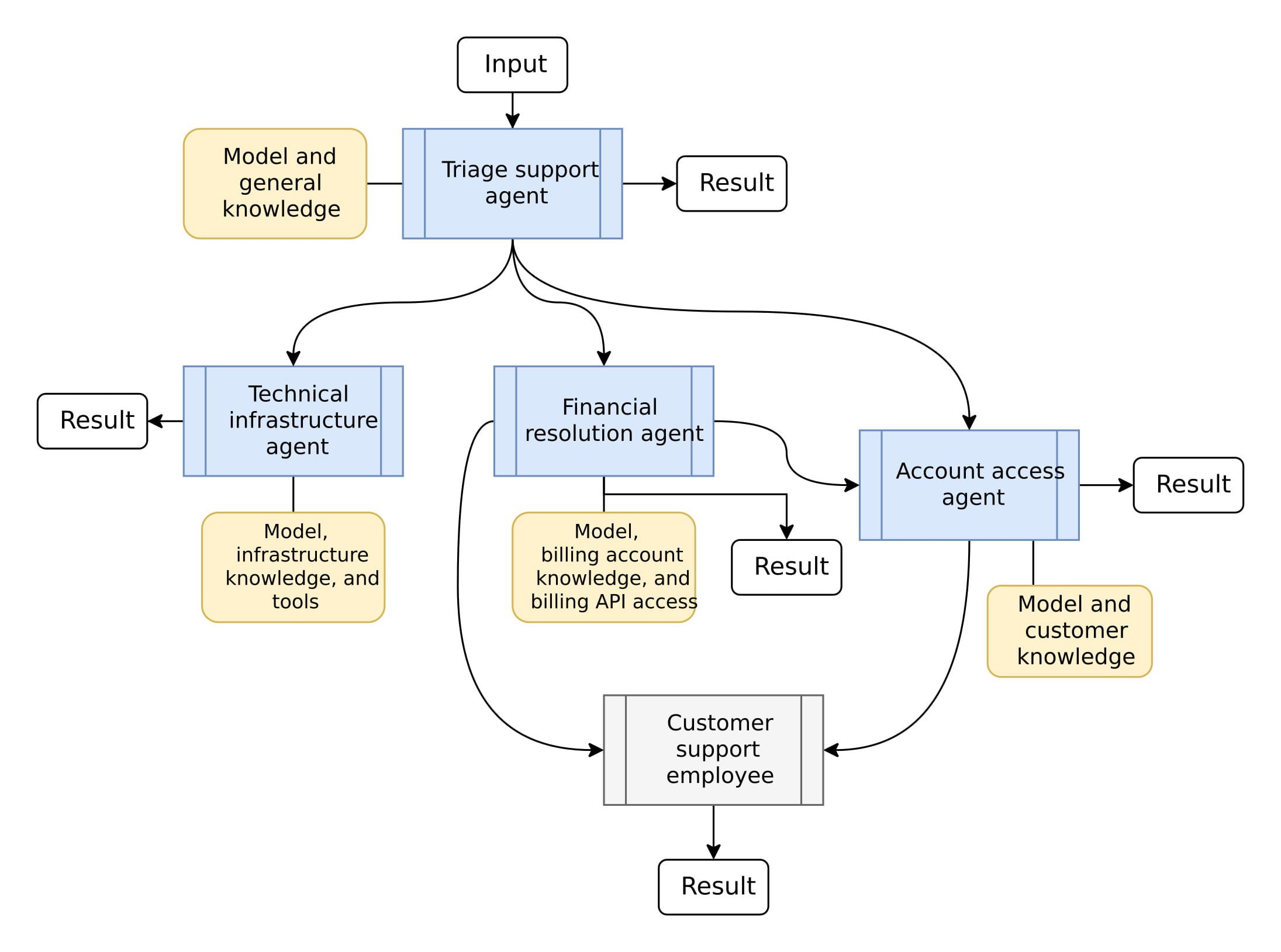
- Multi-agent workflows — orchestrating several specialized agents (a router agent delegating to domain-specific agents) for more complex tasks
- Tool approval — adding a human-in-the-loop confirmation step before a tool executes, which matters for anything with side effects (sending emails, modifying records)
- Hosted tools — plugging in server-side tools like Code Interpreter or Bing Grounding instead of writing your own
Wrapping Up
Microsoft Agent Framework gives .NET developers a genuinely lightweight path into agentic AI — you're not learning a parallel ecosystem, you're extending patterns you already use with dependency injection, minimal APIs, and Microsoft.Extensions.AI. Starting with a single agent and one tool, as shown above, is enough to see how the pieces fit together before scaling up to multi-agent workflows or MCP-backed tool integrations.
If you're coming from Semantic Kernel, the migration is conceptually familiar but worth doing deliberately — the agent-session and multi-turn primitives in MAF are more fully specified, and it's the framework Microsoft is actively investing in going forward.
