Uploading files through your backend server can create performance bottlenecks, especially for large files like images, videos, PDFs, or backups.
A better and scalable solution is using Presigned URLs.
With Presigned URLs:
- Backend generates a temporary upload URL
- Frontend uploads directly to blob storage
- Backend never handles file data
- Uploads become faster and more secure
In this blog, we will implement:
- ASP.NET Core Web API
- AWS S3 Blob Storage
- JavaScript Frontend
- Secure Upload using Presigned URL
What is a Presigned URL?
A Presigned URL is a temporary secure URL generated by the backend that allows clients to upload files directly to cloud storage.
The URL:
- Has expiration time
- Works for a specific file
- Prevents exposing cloud credentials
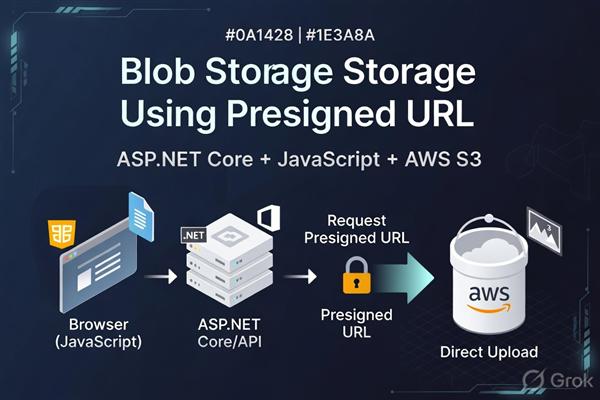
Architecture
Frontend (JavaScript) | | Request Upload URL v ASP.NET Core Backend | | Generate Presigned URL v AWS S3 ^ | | Direct Upload | Frontend Benefits
- Faster Uploads
- Files go directly to storage.
- Reduced Backend Load
- Backend handles authentication only.
- Better Scalability
- Ideal for large applications.
- Improved Security
- URLs expire automatically.
Technologies Used
- Backend
- Frontend
Step 1 — Create S3 Bucket
Create an S3 bucket from AWS Console.
Example bucket:
my-dotnet-upload-demoStep 2 — Configure CORS in S3
Bucket → Permissions → CORS
[ { "AllowedHeaders": ["*"], "AllowedMethods": ["PUT", "GET"], "AllowedOrigins": ["*"], "ExposeHeaders": [] } ]For production, replace "*" with your frontend domain.
Step 3 — Create ASP.NET Core Web API
Create project:
dotnet new webapi -n FileUploadApiMove into project:
cd FileUploadApiStep 4 — Install AWS SDK
Install package:
dotnet add package AWSSDK.S3Step 5 — Configure appsettings.json
appsettings.json
{ "AWS": { "AccessKey": "YOUR_ACCESS_KEY", "SecretKey": "YOUR_SECRET_KEY", "Region": "ap-south-1", "BucketName": "my-dotnet-upload-demo" } }Step 6 — Create Request Model
Models/UploadRequest.cs
namespace FileUploadApi.Models { public class UploadRequest { public string FileName { get; set; } public string FileType { get; set; } } }Step 7 — Create Upload Controller
Controllers/UploadController.cs
using Amazon; using Amazon.S3; using Amazon.S3.Model; using Microsoft.AspNetCore.Mvc; using FileUploadApi.Models; namespace FileUploadApi.Controllers { [ApiController] [Route("api/[controller]")] public class UploadController : ControllerBase { private readonly IConfiguration _configuration; public UploadController(IConfiguration configuration) { _configuration = configuration; } [HttpPost("generate-url")] public IActionResult GenerateUploadUrl([FromBody] UploadRequest request) { var accessKey = _configuration["AWS:AccessKey"]; var secretKey = _configuration["AWS:SecretKey"]; var region = _configuration["AWS:Region"]; var bucketName = _configuration["AWS:BucketName"]; var s3Client = new AmazonS3Client( accessKey, secretKey, RegionEndpoint.GetBySystemName(region) ); var fileKey = $"uploads/{Guid.NewGuid()}-{request.FileName}"; var presignedRequest = new GetPreSignedUrlRequest { BucketName = bucketName, Key = fileKey, Verb = HttpVerb.PUT, Expires = DateTime.UtcNow.AddMinutes(1), ContentType = request.FileType }; string uploadUrl = s3Client.GetPreSignedURL(presignedRequest); var fileUrl = $"https://{bucketName}.s3.{region}.amazonaws.com/{fileKey}"; return Ok(new { UploadUrl = uploadUrl, FileUrl = fileUrl }); } } } Step 8 — Enable CORS in ASP.NET Core
Program.cs
var builder = WebApplication.CreateBuilder(args); builder.Services.AddControllers(); builder.Services.AddCors(options => { options.AddPolicy("AllowAll", policy => { policy.AllowAnyOrigin() .AllowAnyMethod() .AllowAnyHeader(); }); }); var app = builder.Build(); app.UseCors("AllowAll"); app.MapControllers(); app.Run(); Step 9 — Run Backend
dotnet runBackend runs at:
https://localhost:5001Step 10 — Frontend HTML
index.html
<!DOCTYPE html> <html> <head> <title>File Upload</title> </head> <body> <h2>Upload File Using Presigned URL</h2> <input type="file" id="fileInput" /> <button onclick="uploadFile()">Upload</button> <script src="app.js"></script> </body> </html> Step 11 — Frontend JavaScript
app.js
async function uploadFile() { const fileInput = document.getElementById("fileInput"); if (!fileInput.files.length) { alert("Please select a file"); return; } const file = fileInput.files[0]; try { // Step 1: Get Presigned URL const response = await fetch( "https://localhost:5001/api/upload/generate-url", { method: "POST", headers: { "Content-Type": "application/json" }, body: JSON.stringify({ fileName: file.name, fileType: file.type }) } ); const data = await response.json(); // Step 2: Upload directly to S3 const uploadResponse = await fetch(data.uploadUrl, { method: "PUT", headers: { "Content-Type": file.type }, body: file }); if (uploadResponse.ok) { alert("File uploaded successfully!"); console.log("File URL:", data.fileUrl); } else { alert("Upload failed"); } } catch (error) { console.error(error); alert("Something went wrong"); } } How the Flow Works
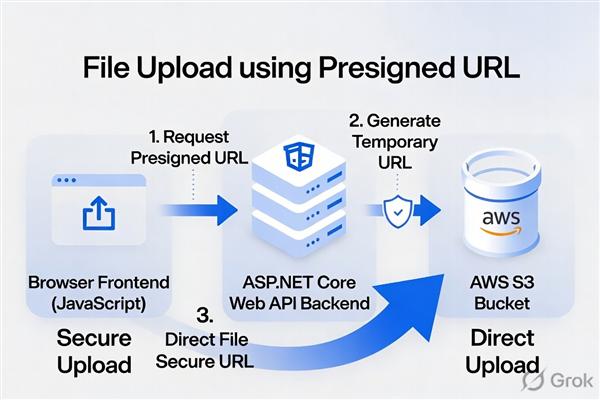
Step 1
Frontend requests upload URL:
POST /api/upload/generate-urlStep 2
Backend generates secure temporary URL:
s3Client.GetPreSignedURL(presignedRequest);Step 3
Frontend uploads file directly:
fetch(uploadUrl, { method: "PUT", body: file })Validate File Types
Add validation inside controller:
var allowedTypes = new[] { "image/png", "image/jpeg", "application/pdf" }; if (!allowedTypes.Contains(request.FileType)) { return BadRequest("Invalid file type"); }Limit File Size
Frontend validation:
const maxSize = 5 * 1024 * 1024; if (file.size > maxSize) { alert("File size exceeds limit"); return; } Recommended Security Practices
Never Expose AWS Credentials
Keep credentials only on backend.
Use Short Expiry
Expires = DateTime.UtcNow.AddMinutes(1)Use IAM Restricted Permissions
Only allow:
{ "Effect": "Allow", "Action": ["s3:PutObject"], "Resource": "arn:aws:s3:::my-dotnet-upload-demo/*" }Common Errors
CORS Error
Fix:
- Configure S3 CORS correctly
- Enable backend CORS
SignatureDoesNotMatch
Fix:
- Verify region
- Verify bucket name
- Check credentials
AccessDenied
- Fix IAM policy permissions.
Production Improvements
Add Authentication
Allow only logged-in users to generate upload URLs.
Store Metadata in Database
Store:
- File URL
- User ID
- Upload date
- File type
Use CloudFront CDN
Improve global file delivery performance.
Final Thoughts
Using Presigned URLs with ASP.NET Core is one of the best ways to build scalable and secure file upload systems.
Benefits include:
- Faster uploads
- Lower server load
- Better scalability
- Improved security
This architecture is widely used in:
- SaaS applications
- Social media platforms
- AI apps
- Video platforms
- Document systems
